Solar AI Optimizer — Dashboard User Guide
This guide walks through the Lit web dashboard served with the backend at http://localhost:8000 (or via the Home Assistant add-on ingress panel). Screenshots use the default dark theme at 1280×900 unless noted.
Getting started
Open the dashboard after installation:
docker compose up -d --build
The top bar shows live connection status and operating mode:
- HA connected / HA offline — Home Assistant WebSocket link
- SHADOW / LIVE — shadow mode logs actions without writing to the inverter
- RULES / MPC — active decision engine (MPC falls back to rules if PuLP is unavailable)
- Status pills such as SET LOCATION, FORECAST DEGRADED, STALE DATA, or SOLCAST MISCONFIGURED highlight configuration or data issues (admin only)
Use the theme toggle (sun/moon icon) to switch light/dark; charts repaint to match.
Opening from Home Assistant ingress
When you open Solar AI from the HA sidebar (add-on or hass_ingress), a boot splash appears immediately while the app verifies your session (GET /api/me). This avoids a blank iframe while JavaScript loads and while ingress role resolution runs. The splash fades out once you are signed in or the login page is shown.
On phones using the Home Assistant Companion app, the dashboard respects safe areas (notch, home indicator) and uses larger tap targets. See the Mobile ingress QA checklist when validating layout on iOS or Android.
Production Docker images ship precompressed JavaScript, CSS, and HTML (Brotli and gzip sidecars built at image build time). Browsers automatically receive the best format they support — no configuration required. To verify from the host:
curl -sI -H "Accept-Encoding: br" http://localhost:8000/assets/<chunk>.js
Expect Content-Encoding: br (or gzip) and Vary: Accept-Encoding. HA ingress passes these headers through unchanged.
Dashboard roles
There is one dashboard for all users. Roles control which tabs and controls appear — not separate apps or URLs.
| Role | Typical access | Tabs |
|---|---|---|
| Admin | HA owner, system-admin group, local login, or API_TOKEN |
Overview, Forecast, History, Assistant, Load shedding, Settings |
| Viewer | Other HA users via ingress | Overview, Forecast, History only |
Role resolution and API enforcement: Roles and access.
Admins can open Viewer from the top status bar to see the same four-tab layout and limited controls that ingress viewers get. Click Admin to return to the full admin dashboard. Preview is UI-only — your session remains admin.
Feature matrix
| Feature | Admin | Viewer |
|---|---|---|
| Overview live status and decision | Yes | Yes |
| Forecast and history | Yes | Yes |
| Shadow / live toggle | Yes | Yes (API only; not shown in viewer UI) |
| Pause all / Resume all (engine) | Yes | Yes |
| Per-subsystem pause / resume (shedding, grid charge, optimization) | Yes | Yes |
| Grid charge Auto / Force ON | Yes | Yes |
| Load shedding Auto / Force OFF | Yes | Yes |
| Kill switch (with confirmation) | Yes | Yes |
| Reserve pin, grid charge, clear overrides | Yes | No |
| Run control cycle, refresh forecast | Yes | No |
| Assistant (LLM) | Yes | No |
| Settings / config / entities | Yes | No |
| Config status banners (SET LOCATION, etc.) | Yes | Hidden |
| Battery time-to-empty on Overview | Yes | Yes |
Admin dashboard
Admins see all six tabs and the full Overrides panel on Overview.
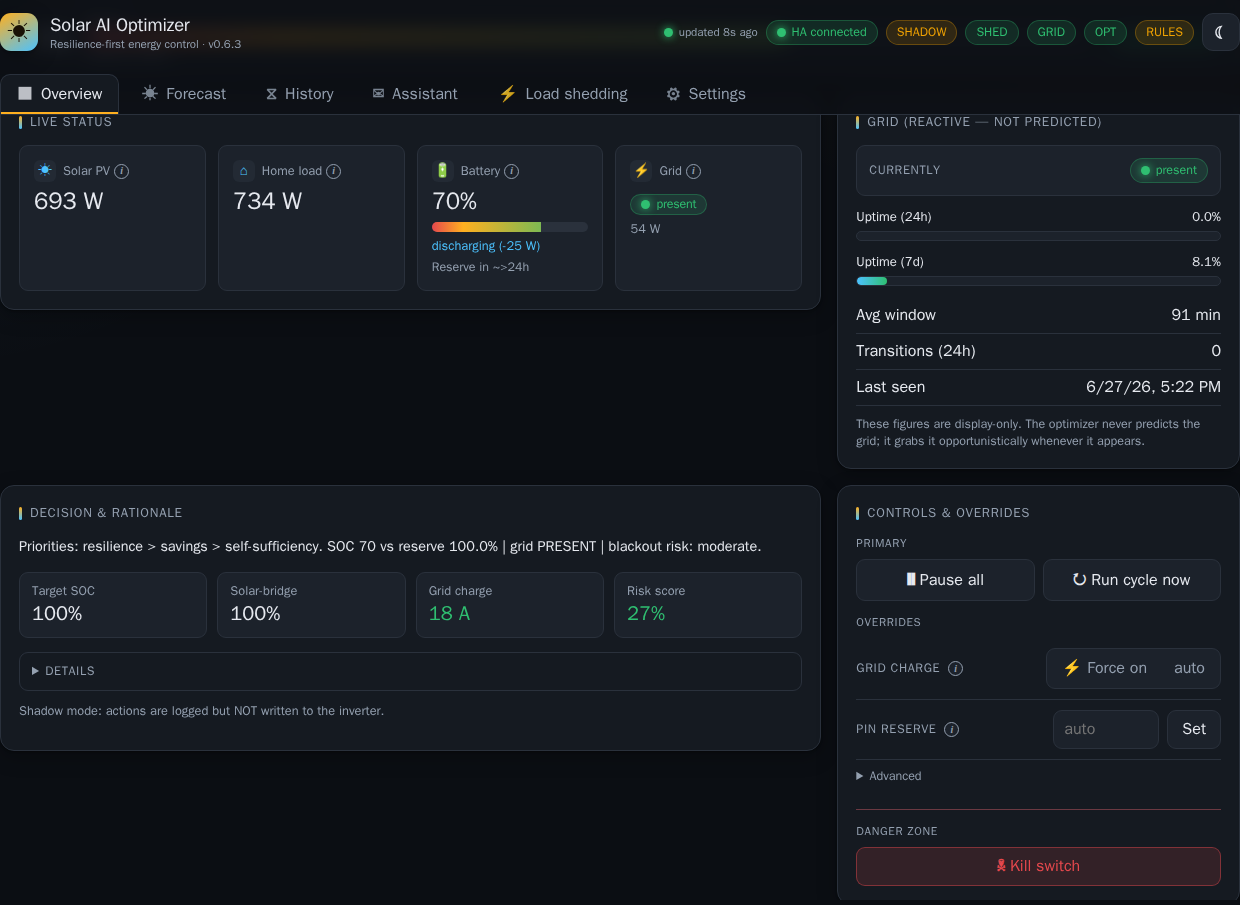
Overview (admin)
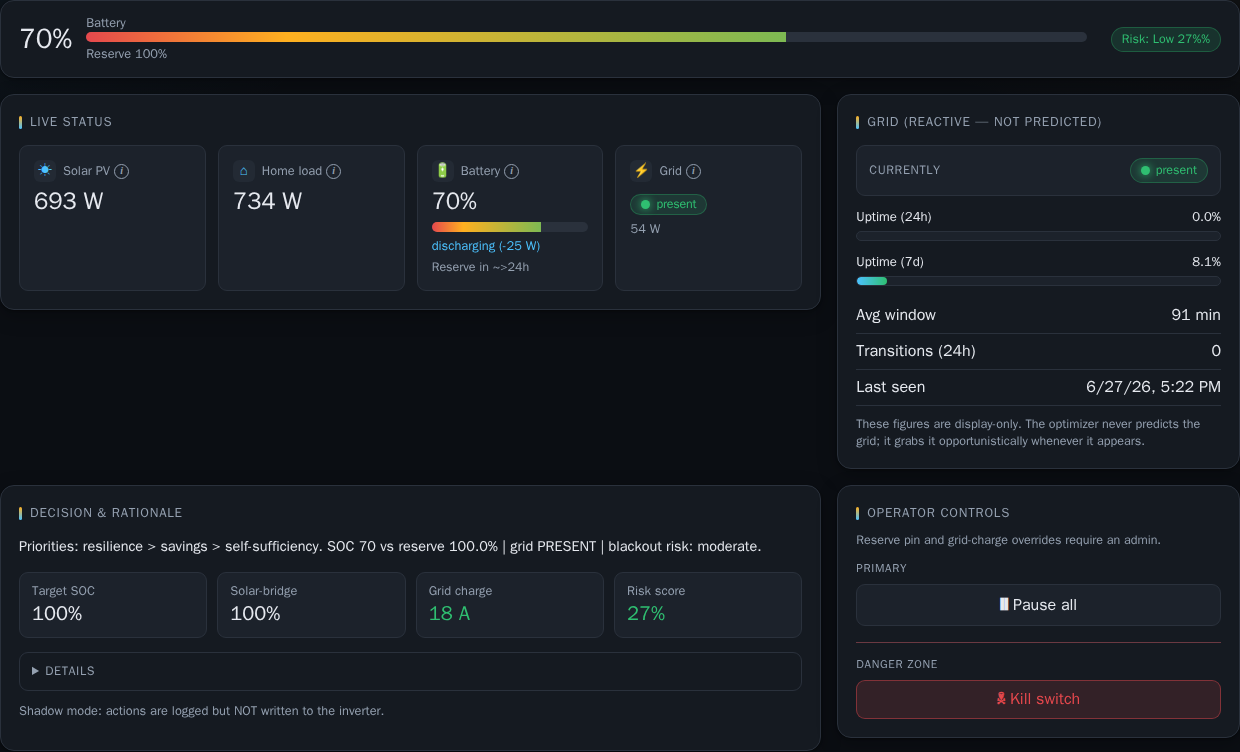
The Overview tab is the control room:
| Area | Purpose |
|---|---|
| Overview hero | Large battery SOC bar with reserve marker and blackout-risk pill |
| Status cards | Live PV, load, grid, and related telemetry |
| Grid statistics | Recent grid availability stats |
| Decision & rationale | Current target reserve, risk score, planned actions, and shed details (expand Details) |
| Overrides | Shadow/live, pause, kill switch, reserve pin, grid charge, run cycle — grouped by section |
Read the Decision panel first: it explains why the optimizer chose its current reserve and actions. Use View shed history or Configure shedding links when shed actions are active.
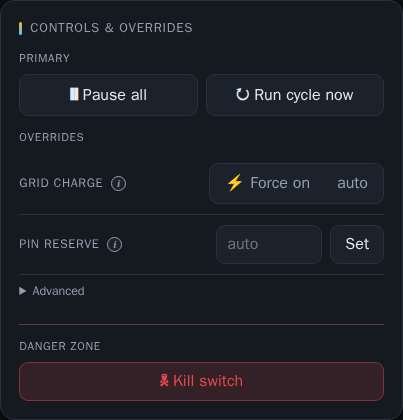
Overrides panel (admin)
Admins get the full operator panel:
- Shadow / Live — start in shadow; switch to live only after you trust the decisions
- Pause all / Resume all — stop or restart all subsystems (shedding, grid charge, optimization)
- Per-subsystem pause / resume — load shedding (two flip toggles: Auto/Force OFF and Running/Paused when shedding is enabled), grid charge (Auto/Force ON and Running/Paused), and optimization toggles (shown for all roles)
- Advanced (admin only) — shadow/live and clear overrides
- Kill switch — emergency stop; grid charge at max (when enabled) and shed tier restore (requires confirmation)
- Reserve override — temporarily force a minimum target SOC (%)
- Run cycle / Refresh forecast — manual triggers
- Clear overrides — reset operator overrides after kill switch
Forecast, History, Assistant, Load shedding, Settings (admin)
Admins use Forecast and History the same as viewers (see below), plus:
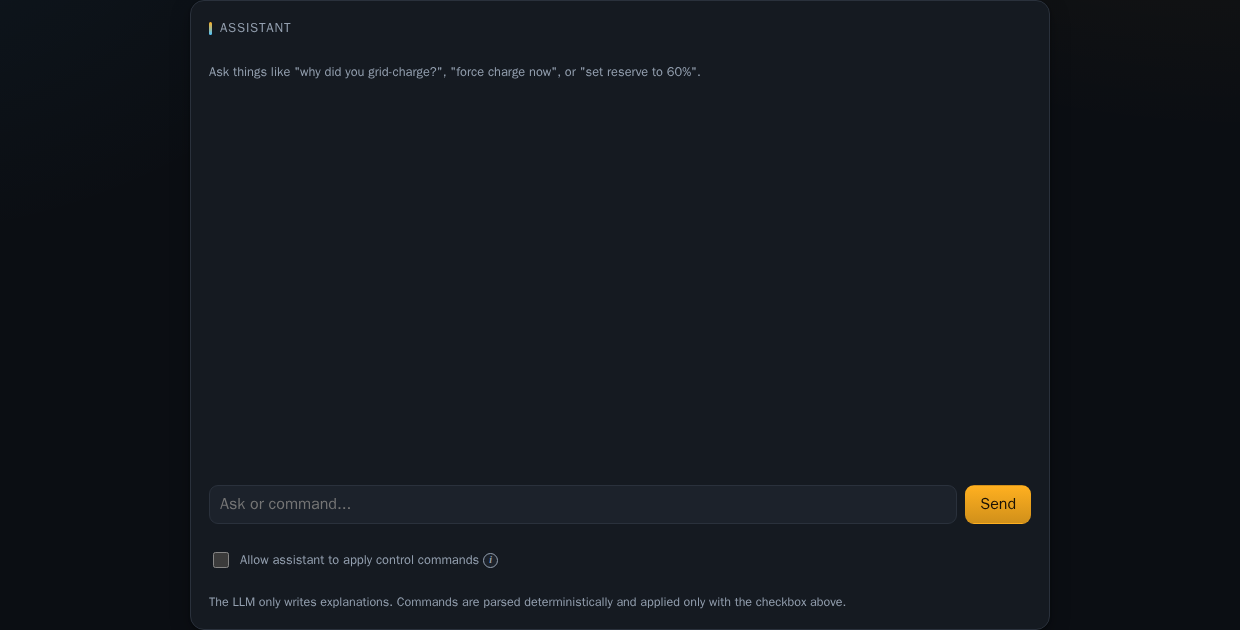
- Assistant — LLM chat about recent decisions; optional command apply
- Load shedding — tiers, SOC thresholds, companion entity discovery, restore options, and shed-only deployment preset (disables grid charge and optimization; optional advisory reserve)
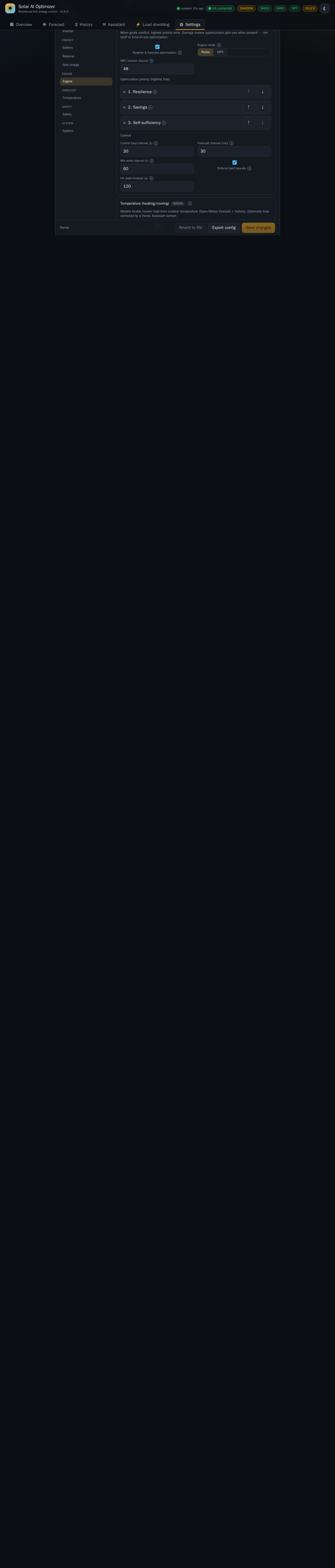
- Settings — HA connection, entities, battery, forecast, engine / grid charge enable toggles, etc.
Viewer dashboard
When you sign in through Home Assistant ingress as a non-admin user, the dashboard runs in viewer mode:
- Tabs: Overview, Forecast, History, and Load shedding (read-only) — no Assistant or Settings
- Top bar: your HA display name may appear under the app title (no role badge for viewers)
- Load shedding tab: view live shed status, tier ladder, and configured entities — configuration changes require an admin
- Overview overrides: Pause all, Resume all, per-subsystem pause/resume toggles, load shedding Auto / Force OFF and grid charge Auto / Force ON flip toggles, and kill switch (with confirmation) — no reserve pin, run cycle, shadow/live toggle, or clear overrides
- Read-only banners on Overview when an admin has pinned reserve SOC, forced grid charge, or forced shed off — viewers see the active override but cannot change it
- Forecast empty state — if location is not configured, the chart shows a message to ask an admin to set latitude/longitude in Settings (viewers cannot open Settings)
- Battery time-to-empty on Overview uses live status data — no Settings access required
Viewers cannot pin reserve SOC, run a control cycle, refresh forecast, clear overrides, use the Assistant, or edit configuration (Settings or load shedding tiers).
See Roles and access for how admin vs viewer roles are determined.
Overview
Shared by admin and viewer (controls differ — see Overrides panel (admin) and Viewer dashboard).
Forecast
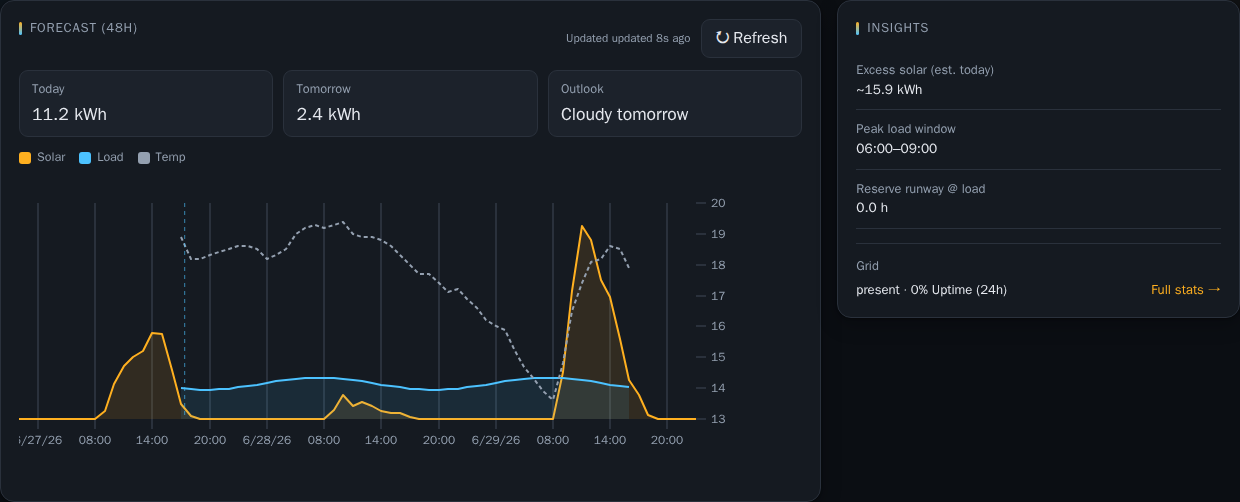
The Forecast tab shows a 48-hour solar and load forecast chart, Insights (excess solar, peak load window, reserve runway), and daily energy totals.
- Solar / Load series use the left power axis (watts)
- Temperature (when configured) uses a separate right-hand °C axis
- Pills warn about cloudy tomorrow or a degraded forecast (hover for reasons)
- Admins can Refresh the forecast manually from this tab
Admins: set site latitude, longitude, PV arrays, and forecast provider under Settings if the chart is empty. Viewers: contact an admin if the chart shows a configuration message.
History
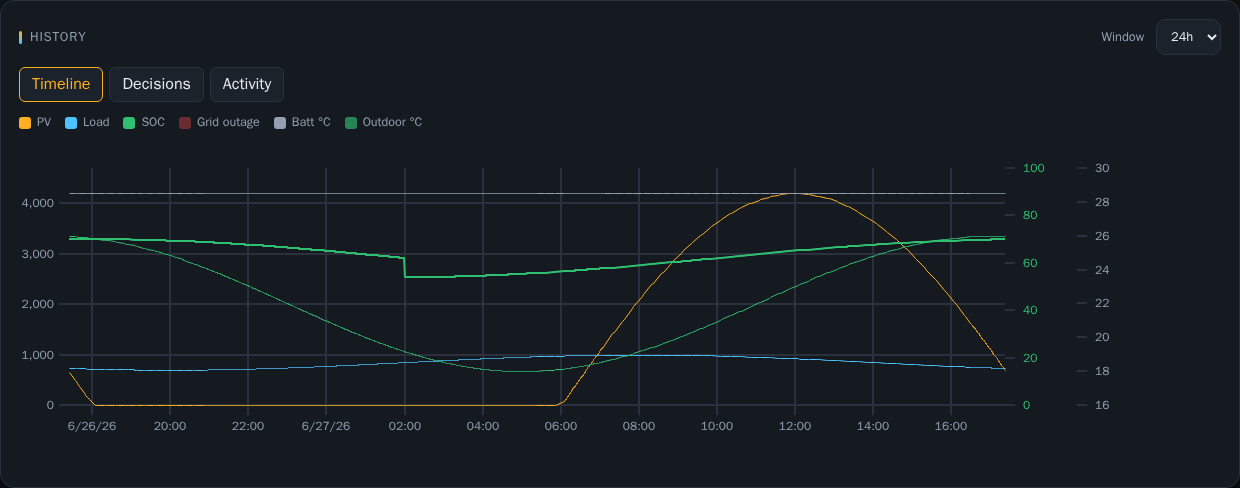
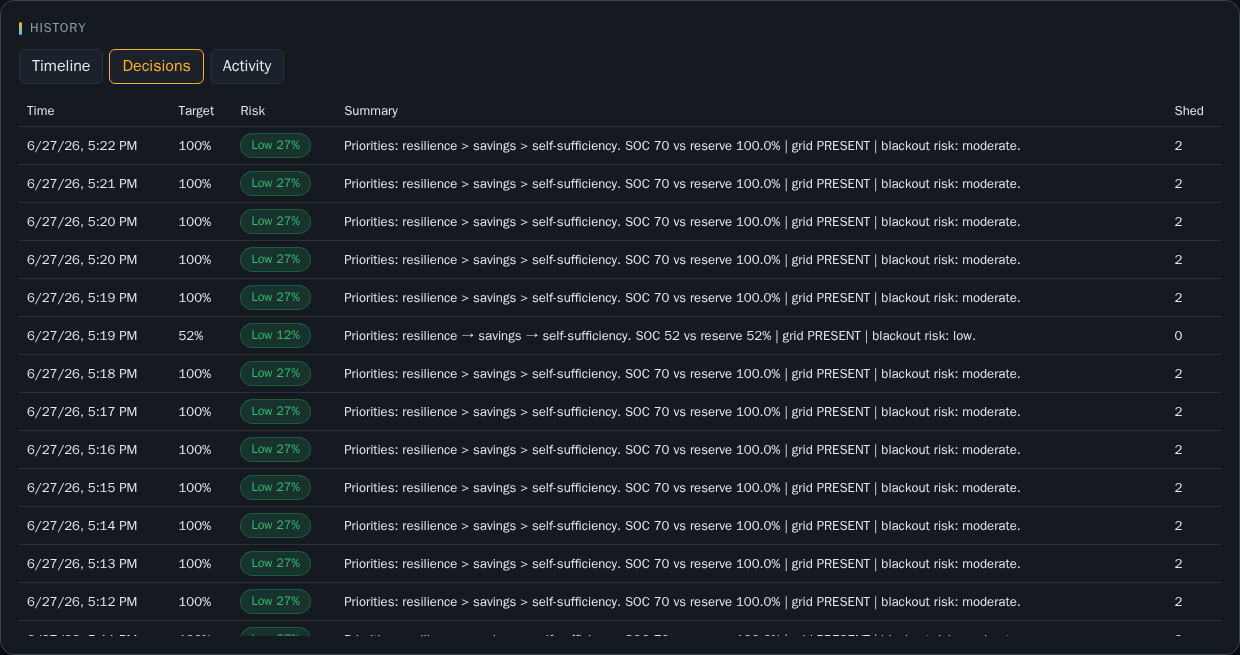
History combines telemetry charts and audit tables. Choose a time window (6h–7d) and a sub-tab:
| Sub-tab | Contents |
|---|---|
| Timeline | SOC (%), power (W), optional temperatures, and grid-outage shading |
| Decisions | Past decisions with risk and shed action counts |
| Activity | Recent inverter writes, shed writes, and grid events (switch segment inside the tab) |
Assistant
Admin only. The Assistant answers questions about recent decisions and can apply parsed commands when you enable Allow assistant to apply control commands.
Examples:
- “Why did you grid-charge?”
- “Set reserve to 60%” (with Apply checked)
- “Engage kill switch confirm” (dangerous — requires explicit confirmation text)
Blocked kill-switch attempts show a red banner explaining the confirmation requirement.
Settings
Admin only. All runtime configuration is edited here and persisted to the solar-data volume. Use Save changes after edits.
Major sections:
| Section | What to configure |
|---|---|
| Home Assistant connection | URL, token, SSL verification |
| Site | Timezone — searchable IANA list or Auto (Open-Meteo at site location). Latitude / longitude for solar and weather APIs. Applies to forecast daily totals, history/chart timestamps, and backend load/temperature bucketing. |
| Fail-safe | Heartbeat entity, shutdown grid-charge-at-max |
| API security | Browser-stored API token when API_TOKEN is set on the server |
| Agent access (MCP) | Read-only status for the optional MCP sidecar; HTTP endpoint URL and local agent (stdio) setup snippets. Configured via environment or HA app options — not saved with Save changes. See MCP. |
| Display preferences | Language (English, العربية, Français) and date format for this browser: locale default, DD/MM/YY, or YYYY-MM-DD (ISO). Arabic sets right-to-left layout. Applies to history tables, chart axes/cursor, and release dates. Decision rationales, API errors, system-update messages, and assistant heuristic fallbacks follow the selected language when the dashboard sends X-Solar-Locale to the backend. Changing language reconnects the live WebSocket and refetches history. Ollama system prompts and heuristic replies are catalog-backed per locale; model output may still vary. History rows stored before the i18n migration may show legacy English skip text until re-fetched; the API normalizes known legacy strings when possible. |
| Battery / Reserve / Forecast / Control | Physical and algorithm parameters |
| PV arrays | Tilt, azimuth, and kWp per array |
| Engine | Rules vs MPC mode; optimization priority order (resilience, savings, self-sufficiency) |
| Temperature | Heating/cooling load model and outdoor sensor |
| Inverter entity map | HA entities for read sensors and write controls |
| Grid charge | Ramp settings for grid charging |
Configure load shedding in the dedicated Load shedding tab (not Settings).
Adding a dashboard language (contributors)
- Copy
frontend/src/locales/en.jsontofrontend/src/locales/<id>.jsonand translate all string values. - Add a
LocaleMetaentry infrontend/src/locales/manifest.ts(id,nativeName,dir,matchprefixes). - Add a loader in
LOCALE_LOADERSin the same file. - Run
docker compose run --rm frontend-test— the locale parity test fails if keys are missing.
Entity fields support autocomplete when Home Assistant is connected. See Home Assistant setup.
Engine and optimization priorities
Under Engine, choose Rules or MPC, then reorder optimization priorities (highest first):
- Resilience — larger reserve buffers and stronger blackout-risk response
- Savings — more opportunistic grid charging when the grid is present (not tariff/TOU optimization)
- Self-sufficiency — stronger solar-trim in grid-charge ramp; prefers PV over grid top-up
The summary under the list reflects the active order. Default order matches the product stance: resilience → savings → self-sufficiency. Priorities scale how strongly each factor bucket influences the grid-charge cap chain.
Load-shedding tiers
Open the Load shedding tab to configure tiers. Each tier can control several power switches (e.g. pool pump + heater, or an AC power switch). All entities in a tier shed and restore together using the same SOC hysteresis. Lower priority number sheds first. Tier blocks are collapsed by default; the summary line shows the tier name, shed SOC, priority, and device count — click to expand the full editor.
When you pick a power entity, companions on the same HA device (climate, select, fan, etc.) are discovered automatically and listed under that entity (companion sections also start collapsed). Remove unwanted companions or use Clear all for switch-only shedding. Devices that were off before shedding stay off on restore.
Per-tier toggles:
- Auto-restore on SOC — restore when SOC rises above the tier threshold
- Restore when grid present — restore when grid is detected (if the global flag is on)
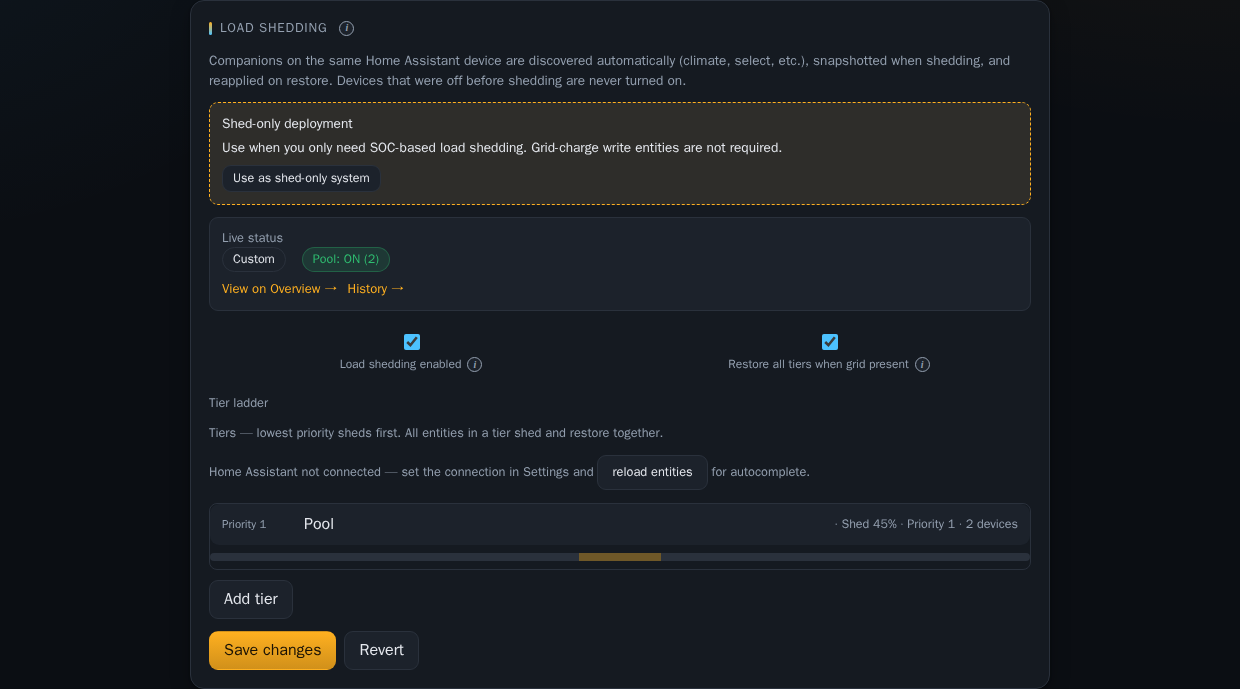
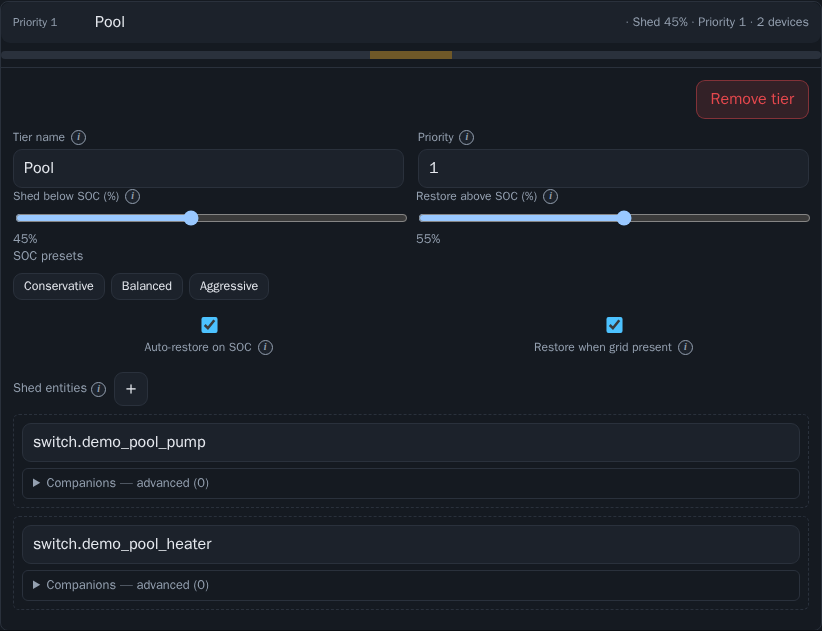
Advanced sections at the bottom support raw JSON edit, model import/export, and ML retrain.
Software updates
Under Software updates (admin), the dashboard lists recent GitHub releases with
Markdown-formatted release notes. On Docker self-update hosts, use Install on any
listed stable version. Enable Include beta releases to show pre-releases in the table
(installable on self-update hosts); beta versions do not trigger the top-bar UPDATE
badge or update toasts. Downgrades show an extra warning; a /app/data backup is created
before each install. If the service does not come back after an install, use Restore
from the backups section. Use Check for updates to refresh the release list. The top
bar UPDATE badge appears when a newer stable version is available.
Home Assistant App installs are updated via Supervisor. The in-app Software updates section is not shown on HA App deployments.
Image version
One-click install requires v0.5.5+ (Docker CLI in the image). v0.5.2–0.5.4 need a
manual docker pull and recreate once — see Installation.
Toast notifications
Save, login, override, and update actions show brief toast messages at the bottom of the screen (loading spinner, then success or error). Errors stay visible a few seconds longer than success messages.
Troubleshooting
| Symptom | What to check |
|---|---|
| HA offline | Settings → Home Assistant URL/token; network from container to HA |
| SET LOCATION | Forecast latitude/longitude in Settings |
| SOLCAST MISCONFIGURED | SOLCAST_API_KEY and SOLCAST_RESOURCE_ID in environment / add-on options |
| STALE DATA | HA entities in inverter map; ha_stale_after_seconds in Control |
| API errors banner | API token in Settings → API security; CORS if using a separate origin |
| Empty charts | Wait for telemetry history; widen History window |
| VIEWER but need Settings | Ask an HA admin or use local admin login for direct access |
| Blank iframe on ingress open | Upgrade to v0.5.7+ for the boot splash; see ingress troubleshooting |
| Double scrollbar in HA app | Fixed in v0.5.7+ (background-attachment and 100vh layout tweaks); see Mobile ingress QA |
Regenerating screenshots
DEMO_MODE is for docs only
Never run DEMO_MODE on a system connected to a real inverter.
After UI changes, refresh images for this manual:
docker compose -f docker-compose.yml -f docker-compose.demo.yml up -d --build
docker compose exec solar python -m scripts.seed_demo
docker compose restart solar
Then capture screenshots (Docker — works without local Node/npm):
# One-time, or after frontend/package-lock.json changes:
docker compose --profile docs run --rm docs-screenshots npm ci

# Every regen (demo stack must be running on port 8000):
docker compose --profile docs run --rm docs-screenshots
From frontend/ you can also run npm run docs:screenshots:docker.
Or with local Node installed (one-time npm ci + npx playwright install chromium):
cd frontend
npm ci
npx playwright install chromium
npm run docs:screenshots
Legacy fallback (slow — reinstalls browsers every run)
docker run --rm --add-host=host.docker.internal:host-gateway \
  -v "$(pwd)/frontend:/ui" -v "$(pwd)/docs:/docs" \
  -e SCREENSHOT_BASE_URL=http://host.docker.internal:8000 \
  -w /ui node:26-trixie \
  bash -lc "npm ci && npx playwright install --with-deps chromium && npm run docs:screenshots"
Commit updated files under docs/images/frontend/ together with any manual text changes. Captures include desktop (1280×900) and mobile (mobile-*.png, 390×844) viewports — notably load-shedding.png, settings-load-shedding.png, and mobile-load-shedding.png. The capture script waits for live data, charts, and config to load before each shot (no fixed sleep delays).